Maintenance & Diagnostic Center
Branching Troubleshooting Wizard and Device Care Guidelines
Interactive Device Troubleshooting Wizard
Experiencing hardware chimes failure, low volume, or constant feedback whistling? Click choices on the dynamic diagnostic flow tree below to isolate and remedy classroom hearing tech issues step-by-step.
Manufacturer Diagnostics & Status Indicator Wizard
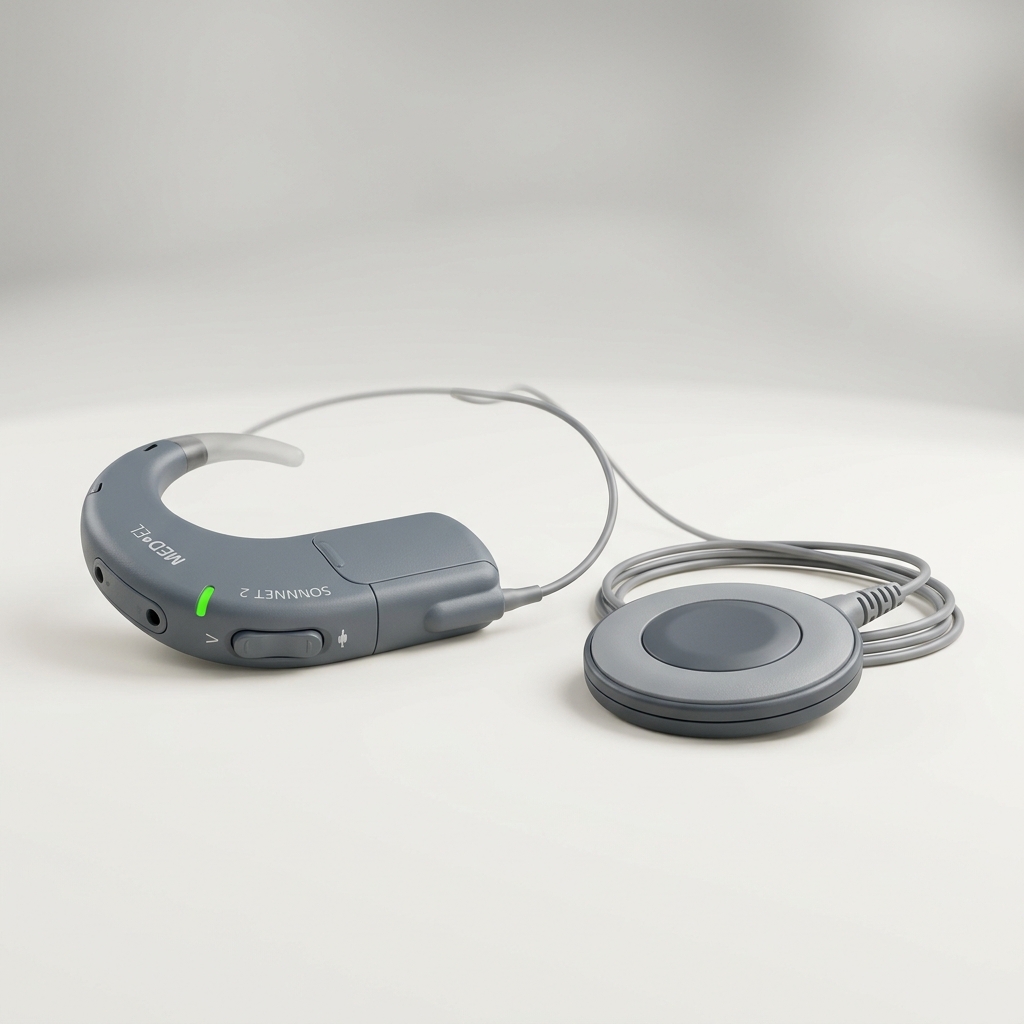
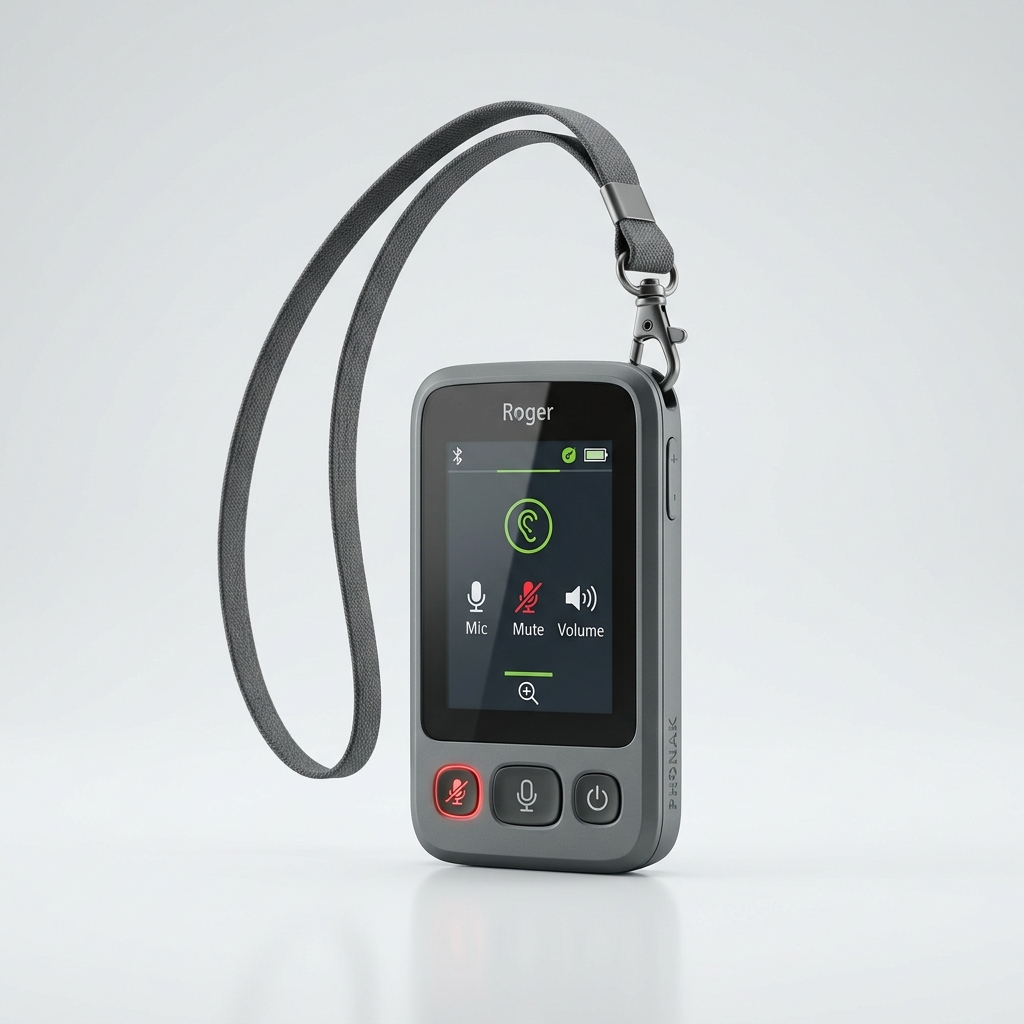
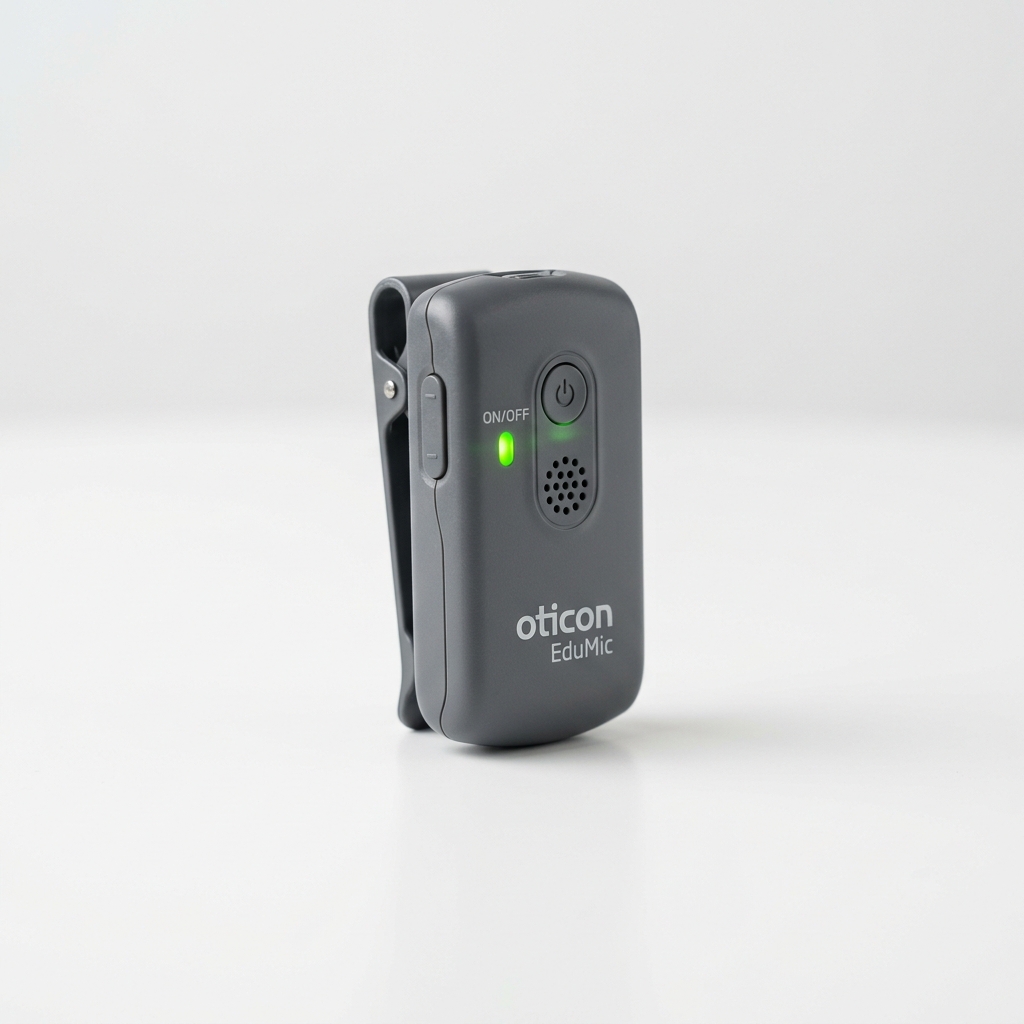
Select a device type and clinical manufacturer to inspect status LED codes, wax filters, coil locks, and transmitter pairings.
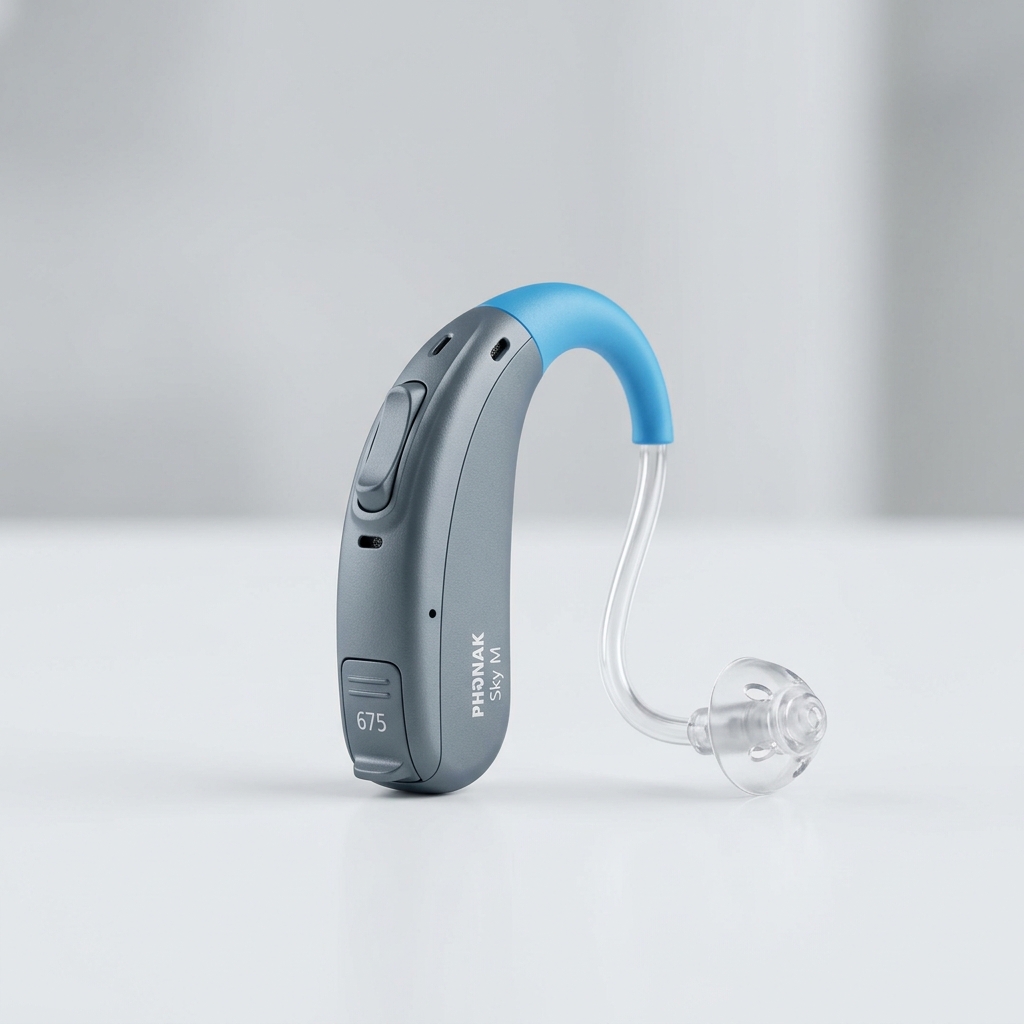
Phonak Sky Marvel
HA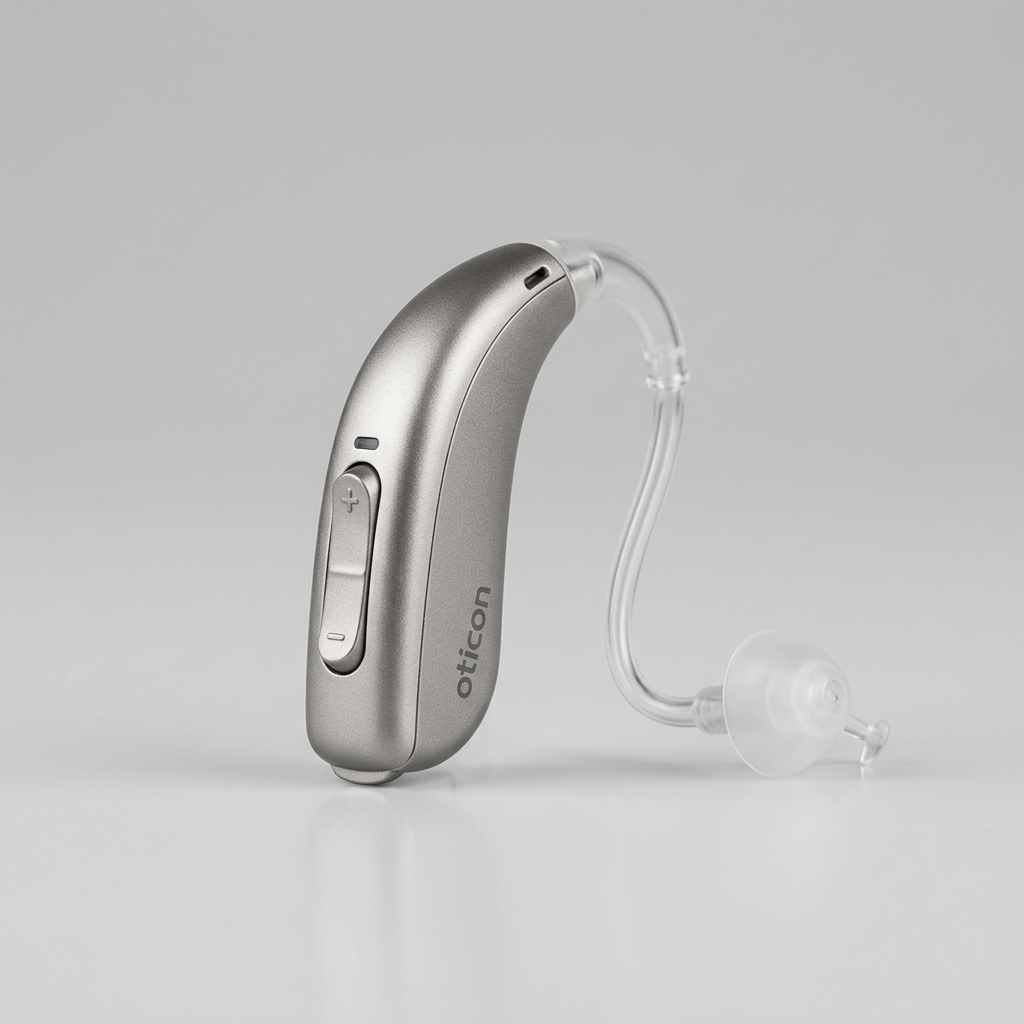
Oticon Play PX
HA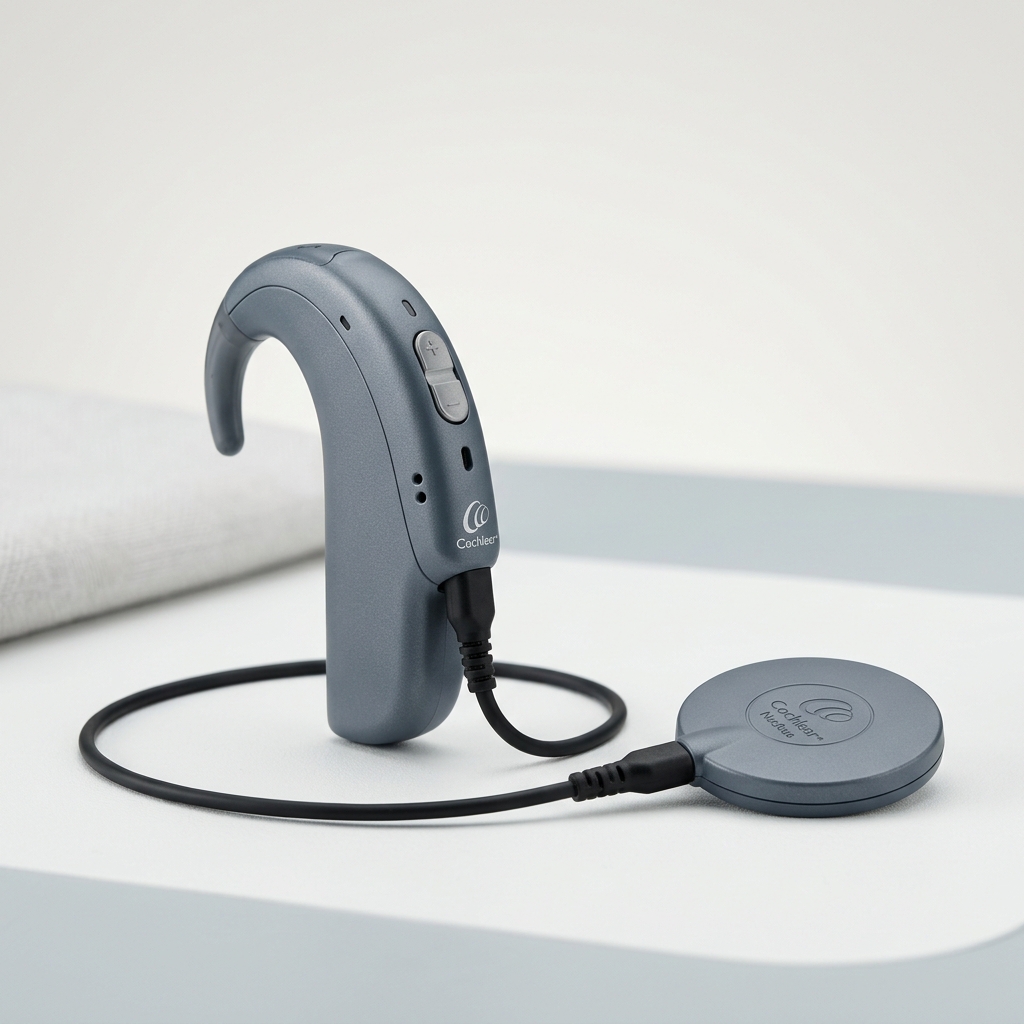
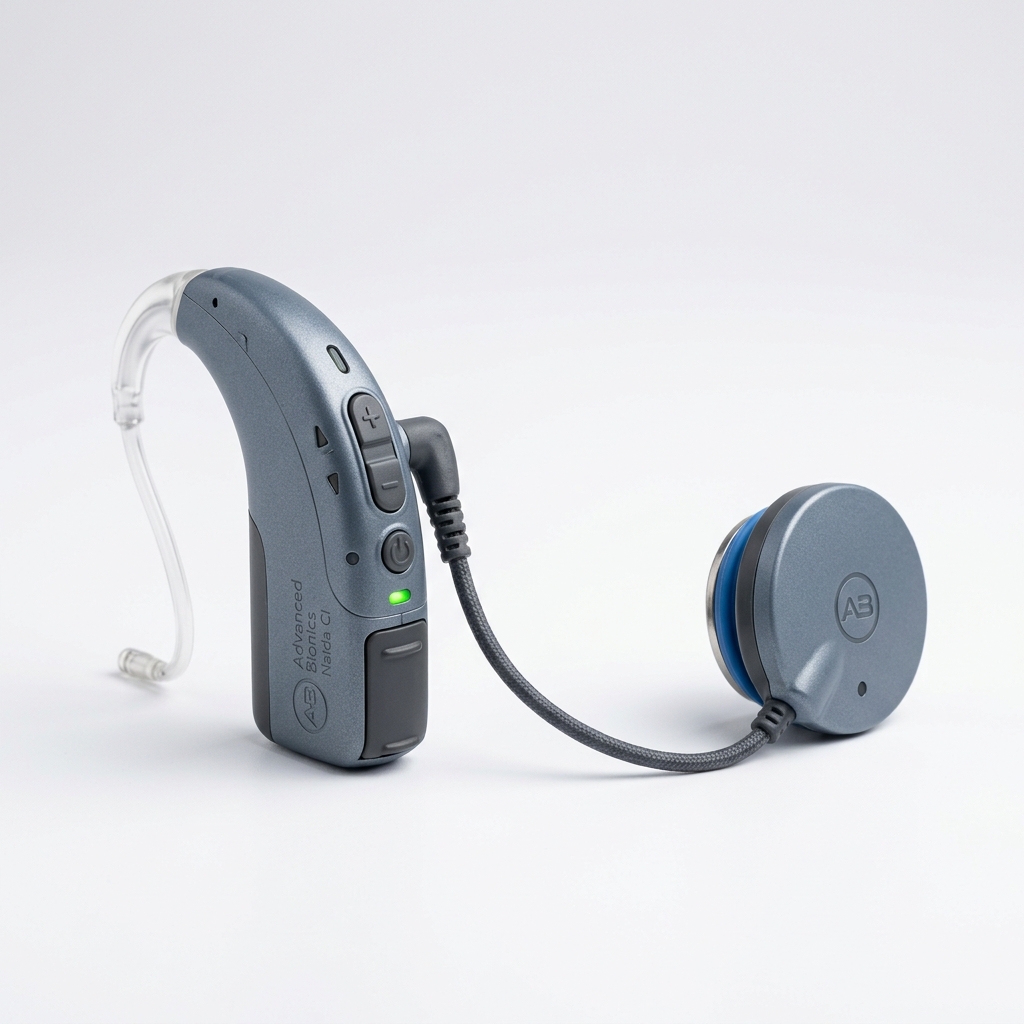
Classroom Battery Systems & Power Accessories
DHH classroom tech is powered by either traditional air-activated disposable batteries or high-capacity rechargeable Lithium-Ion systems. Follow these guidelines to maintain constant classroom power.
Traditional Zinc-Air Batteries
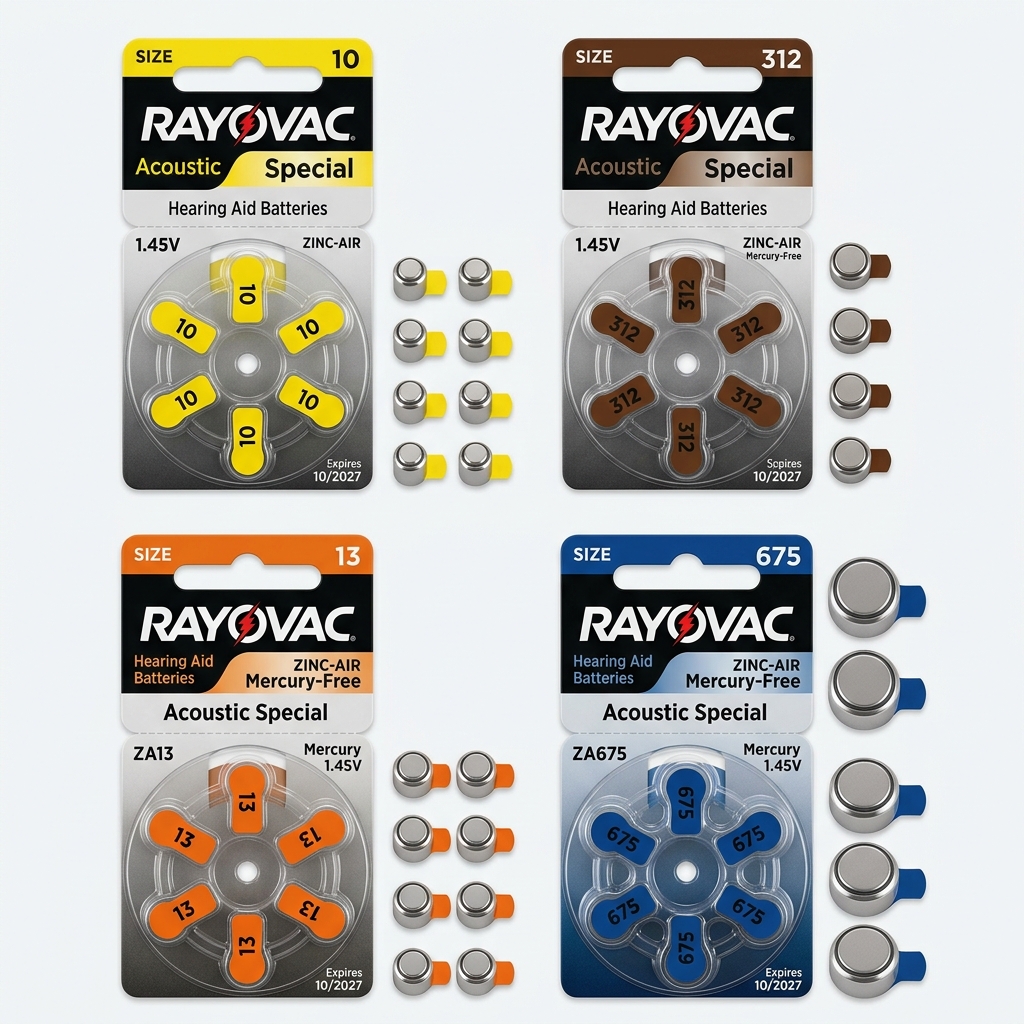
Size 10 (Yellow)
Micro BTE/ITE devices
Size 312 (Brown)
Standard mini-BTE aids
Size 13 (Orange)
High power BTE aids
Size 675 (Blue)
Super power aids & CI units
⚠️ The 60-Second Oxygen Rule:
Zinc-Air batteries use small air holes sealed by a sticker. You MUST peel the sticker off and wait exactly 1 minute before placing it in the device. Closing the battery drawer too early seals out oxygen, causing the battery to act dead or die within hours!
Rechargeable Systems & Power Accessories
Charging Cases & Docks
Modern Lithium-Ion aids stay in their charging slots overnight. Placing them inside automatically powers them off and triggers a flashing charging light. Make sure charger units are plugged in and BTE earmolds are positioned cleanly in the outer case recesses so the cover closes securely.
Gold Charging Contacts & Cleanliness
Pocket lint, earwax, or sweat on the gold contacts (on both the hearing aid spine and the charger slot base) will halt charging completely. **Clean these contacts weekly** with a dry cotton swab (Q-tip) or a soft cleaning brush. Never clean using water, alcohol, or metal scrapers!
Battery Testing & Diagnostic Strategies
For zinc-air, check voltage with a dedicated **digital battery tester** (a read-out less than 1.1V means replace). For rechargeable devices, check levels using the iPad **Accessibility -> Hearing Devices** panel, or double-check the LED blink indicator when placing the aid in the charging dock.
Bluetooth & iPad Pairing
1. Connect Roger to Smartboard/iPad
Plug a standard 3.5mm auxiliary audio cable from the smartboard headphone jack into the Roger Touchscreen microphone bottom input. The transmitter will automatically mute its local room microphone and stream smartboard audio directly to the student’s ears!
2. Direct Bluetooth to Personal Aids
To pair hearing aids directly to an iPad: Open **Settings** -> **Accessibility** -> **Hearing Devices**. Open and close the student's battery door to trigger Bluetooth pairing discovery. Select their device name on the screen to connect.
Weekly Moisture & Cleaning Care
🔄 Changing the Wax Guard (Filter)
1. Take a fresh guard stick from the wheel tool.
2. Press the empty black side of the stick directly into the clogged wax guard inside the speaker dome to pop it out.
3. Flip the tool and press the new white wax guard into place. Discard the stick.
💧 Night-time Dehumidification
Moisture from sweat and ear humidity builds up inside the plastic tubes, causing static distortion. Open the battery doors and place the devices inside a sealed silica gel **drying jar** or an electric UV drying chamber each night.
Device Inspector
Drag to pan when zoomed. Click hotspots to inspect component guidelines.